Vinted Extension Installation Guide
This guide walks you through installing the Aistetic Vinted extension and publishing your first items.
Video Tutorial
Step 1: Download the Extension
Download the Vinted extension from the link below and unzip it. Save the unzipped folder in a safe location on your computer — you'll need it to stay there for the extension to work.
Step 2: Install the Extension in Chrome
-
Open Chrome and navigate to the Extensions page — paste this into your address bar:
chrome://extensions -
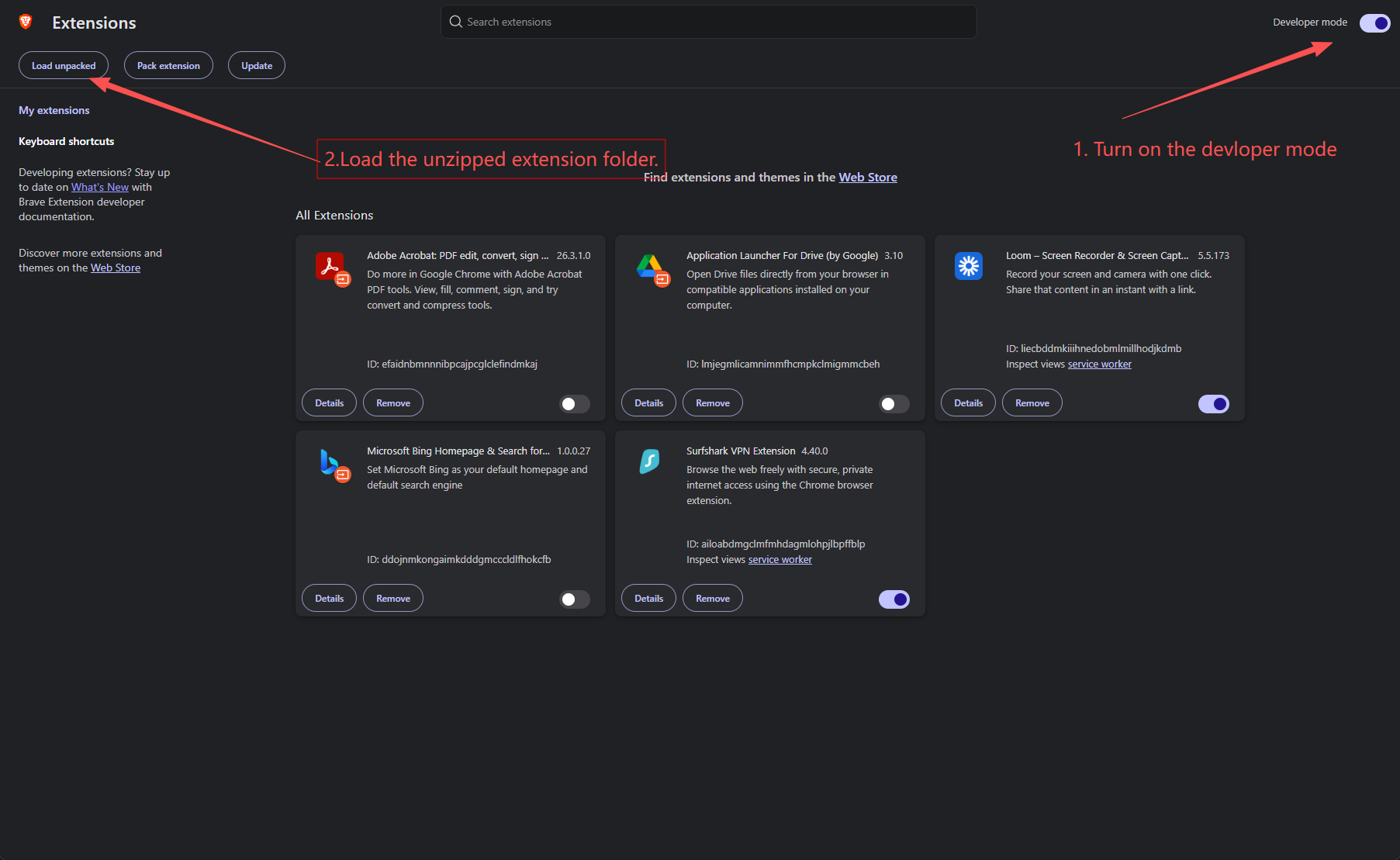
Enable Developer Mode using the toggle in the top-right corner
-
Click Load unpacked and select the unzipped extension folder
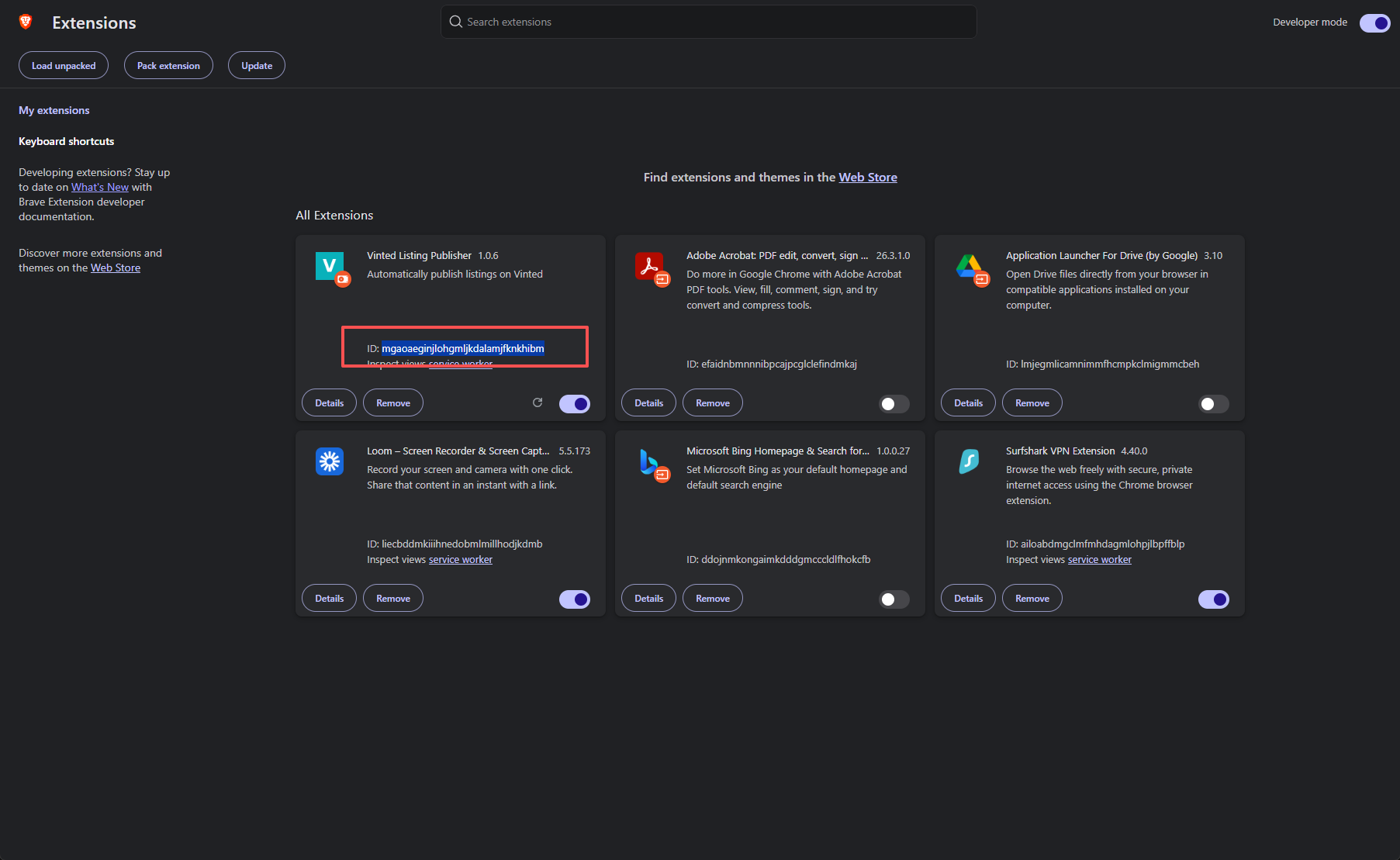
- Once loaded, find the Vinted Listing Publisher extension and copy the Extension ID
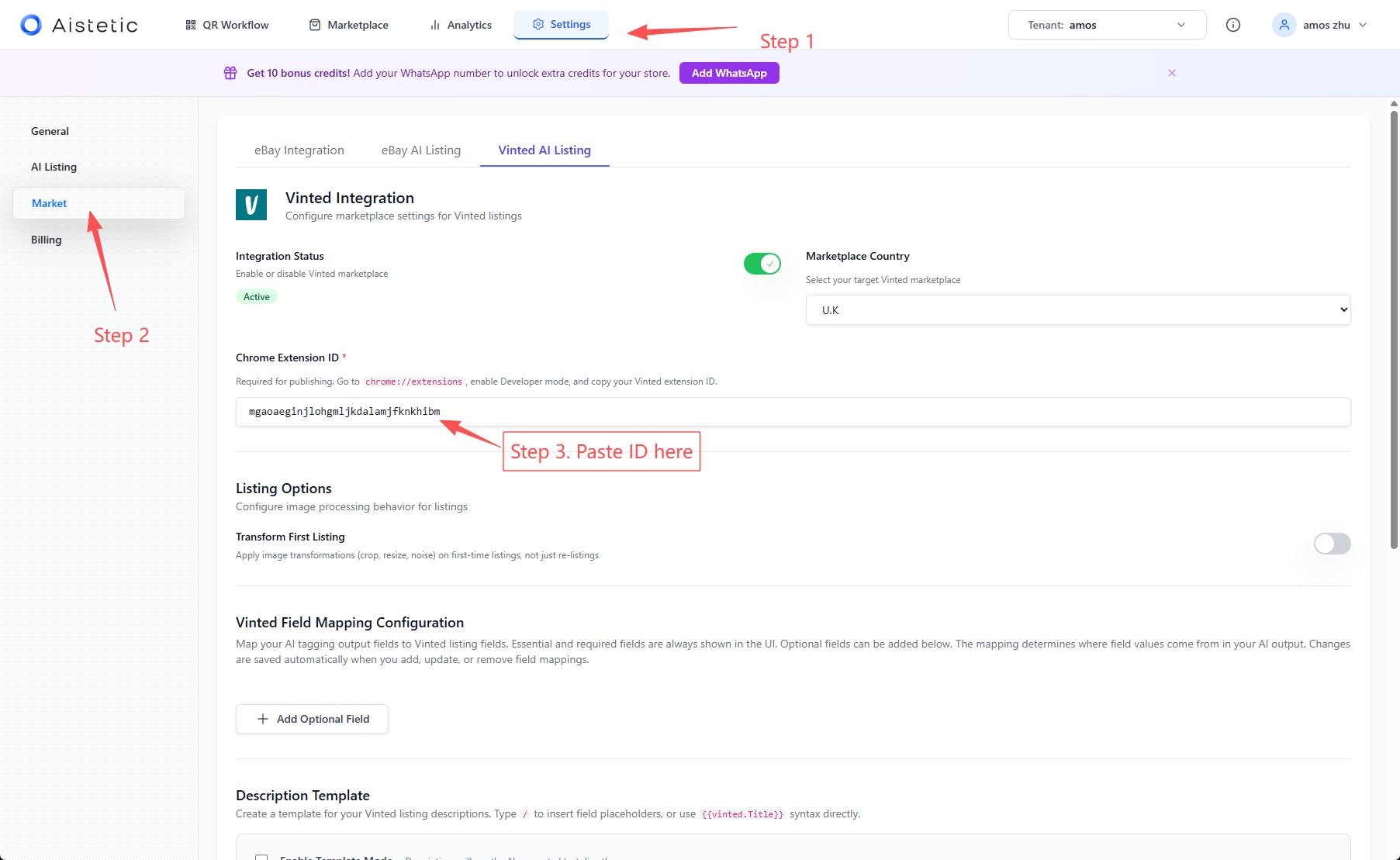
- Go to the Aistetic dashboard, navigate to Settings > Market > Vinted AI Listing, and paste the Extension ID into the Chrome Extension ID field
Step 3: Publish Items
Before publishing, make sure your Vinted page is open in your browser and you are logged in. Vinted does not support backend processing — our extension automates the manual steps for you, so the Vinted tab must be active and visible.
Why does this matter? Our extension is designed with both efficiency and safety in mind. It mimics natural human behaviour when interacting with Vinted — performing actions the same way a person would. This approach minimises the risk of bot detection by Vinted, keeping your account safe while automating the repetitive work for you.
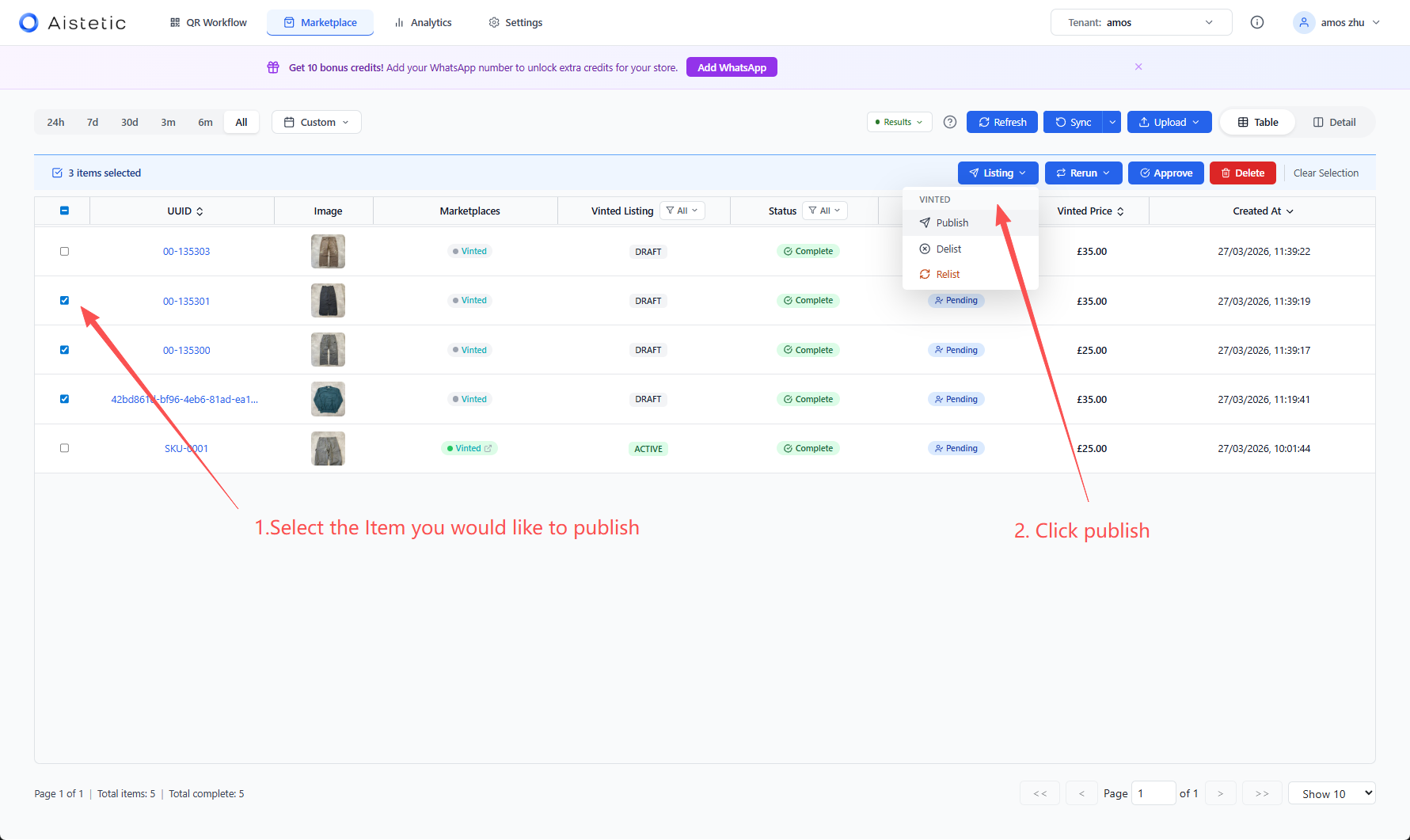
- Select the items you want to publish, click Listing, then click Publish
- Switch to your Vinted tab and keep it in the foreground. The tab must be focused and visible — do not minimize, hide, or switch away from it while publishing is in progress
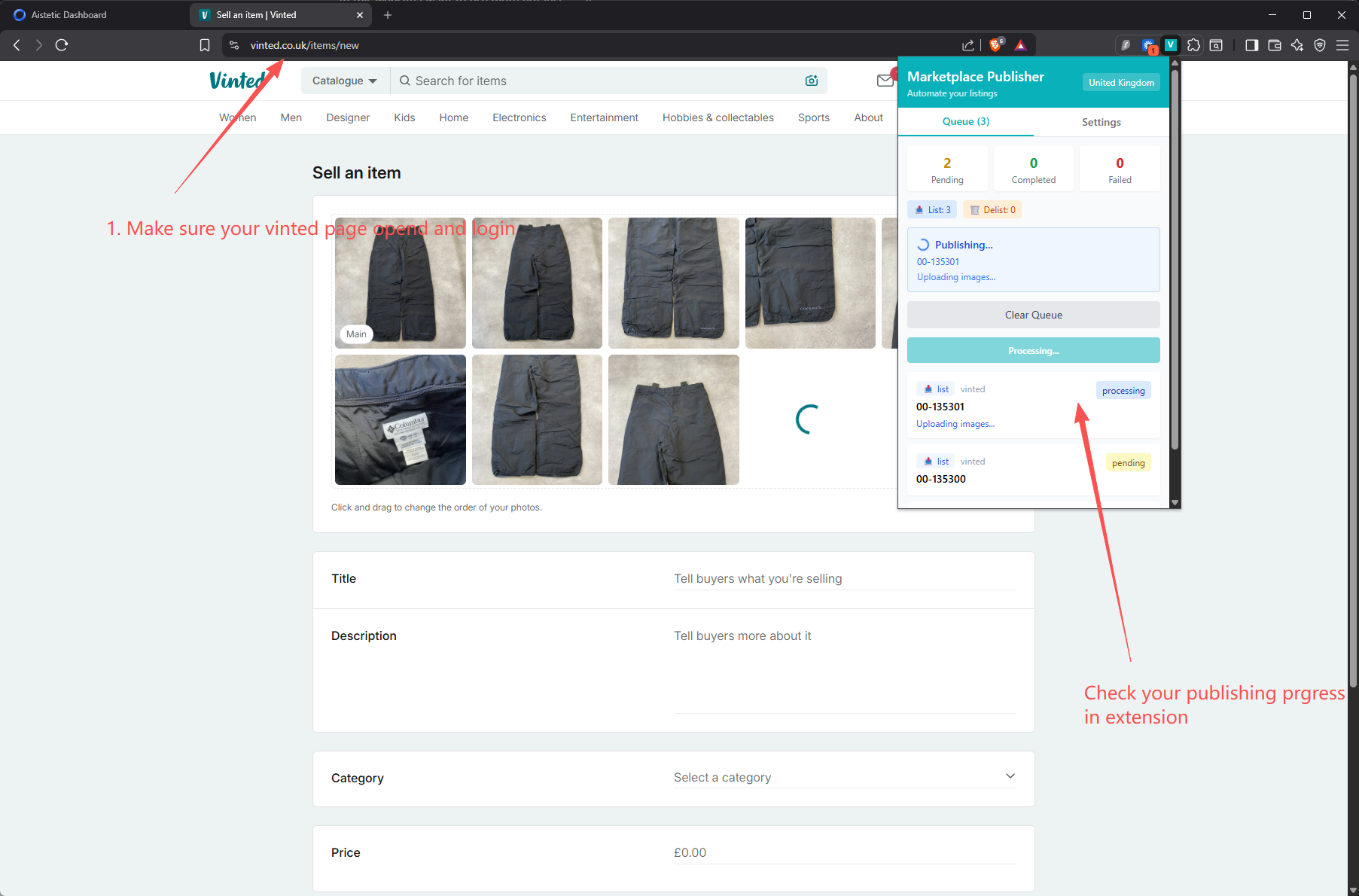
- Once publishing is complete, you can view your published items in the marketplace
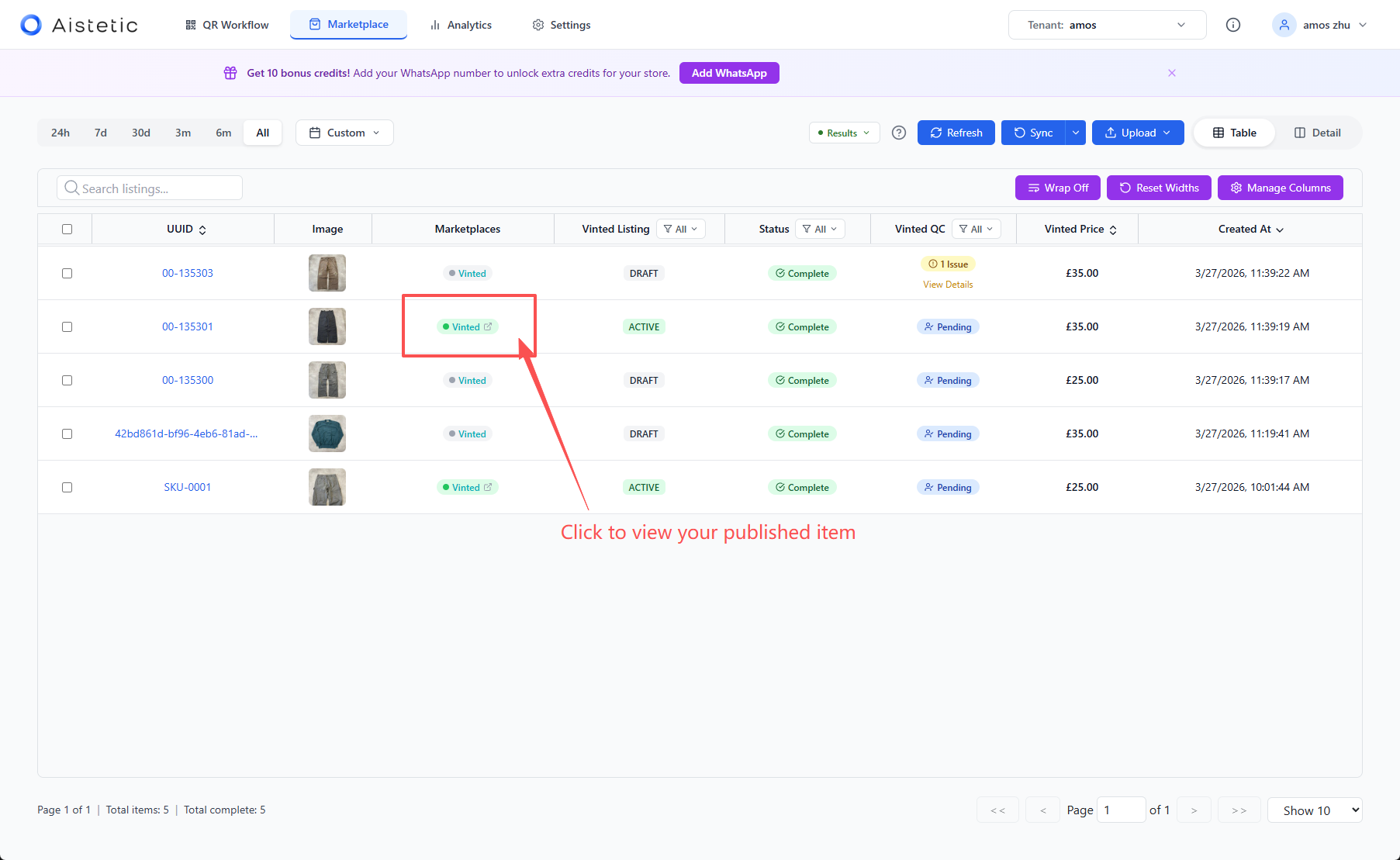
Your items are now listed on Vinted through Aistetic!